
Preface #
While working on optimizing my blog’s image formats, I came across AVIF1, a relatively new image format. After learning more about it, I found that it offers significant advantages over traditional JPEG in terms of compression ratio. I did some research and decided to document my findings here.
What is AVIF #
AVIF is an image format based on AV1 video coding technology. Like JPEG, it uses lossy compression to reduce file size, but unlike JPEG, AVIF can achieve much smaller file sizes at the same visual quality.
The format was developed by the Alliance for Open Media (AOMedia), a consortium consisting of companies like Amazon, Netflix, Google, and Mozilla. Files are compressed using the AV1 (AOMedia Video 1) algorithm and stored in the HEIF container format2. Since AV1 compression technology is royalty-free3, there are no licensing fees required to use it.
You can check AVIF’s browser support on Can I use.
AVIF vs JPEG #
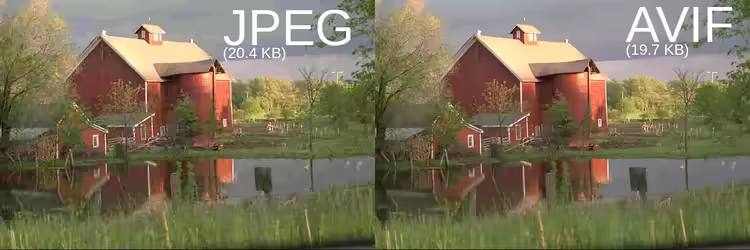
The most obvious advantage of AVIF over JPEG is significantly smaller file sizes. Smaller files mean less bandwidth consumption and faster loading times. Replacing JPEG images with AVIF on a webpage can reduce image data consumption by about half.
Color depth is another area where AVIF outperforms JPEG. JPEG only supports 8-bit color depth, while AVIF supports HDR4, meaning richer colors and more detail.
Netflix has some excellent visual examples comparing the same image compressed as JPEG and AVIF. Other comparisons with WebP and PNG formats are also worth checking out.
How to Use AVIF #
You can use FFmpeg5 to convert images from other formats to AVIF.
Simple conversion examples:
# JPEG → AVIF
ffmpeg -i input.jpg output.avif
# PNG → AVIF
ffmpeg -i input.png output.avif
Adjust output quality with the -crf parameter (0-63, lower values mean higher quality):
ffmpeg -i input.jpg -c:v libaom-av1 -crf 30 -b:v 0 output.avifAdjust compression level with the -cpu-used parameter (0-8, higher values mean faster speed but lower compression):
ffmpeg -i input.jpg -c:v libaom-av1 -cpu-used 4 -crf 30 -b:v 0 output.avifCombined usage, specifying both quality and compression level:
ffmpeg -i example.png -c:v libaom-av1 -crf 30 -cpu-used 4 -b:v 0 example.avif